User Segments
Overview
This topic explains how to build and manage user segments. User segments let you target groups of users individually or by attribute.
Understanding user segments
User segments are lists of users that you can use to manage flag targeting behavior in bulk. Segments are useful for keeping groups of users, like beta-users or enterprise-customers, up to date. They allow you to more quickly turn features on or off for certain groups with confidence.
There are some differences between flag and segment targeting that you should be aware of:
- Segments are environment-specific. They do not populate in environments other than the one you created them in.
- Segment targeting cannot reference another user segment.
Using the Segments list
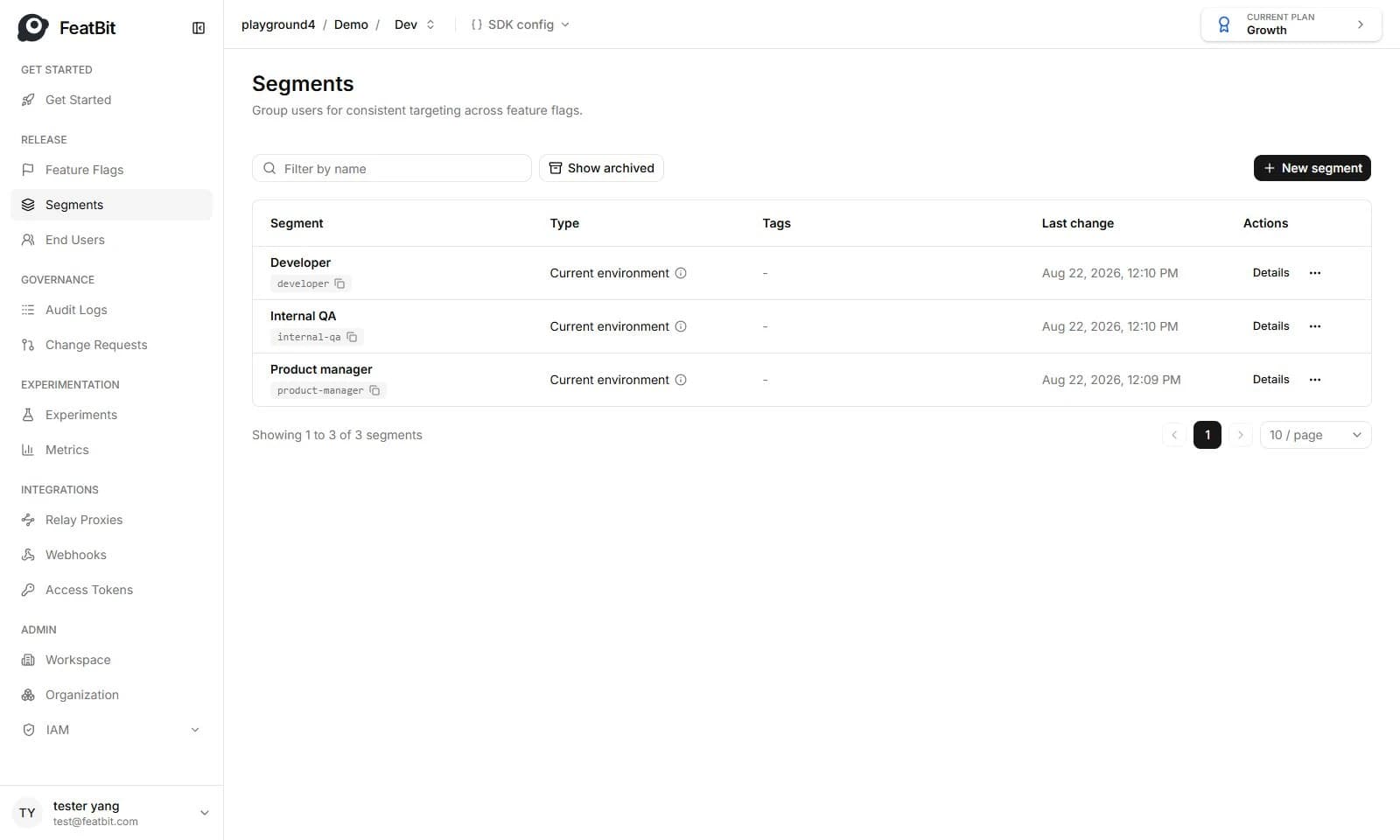
You can view segments on the Segments list. From the list, you can filter segments by name.
Creating user segments
To create a new segment:
- Navigate to the Segments list.
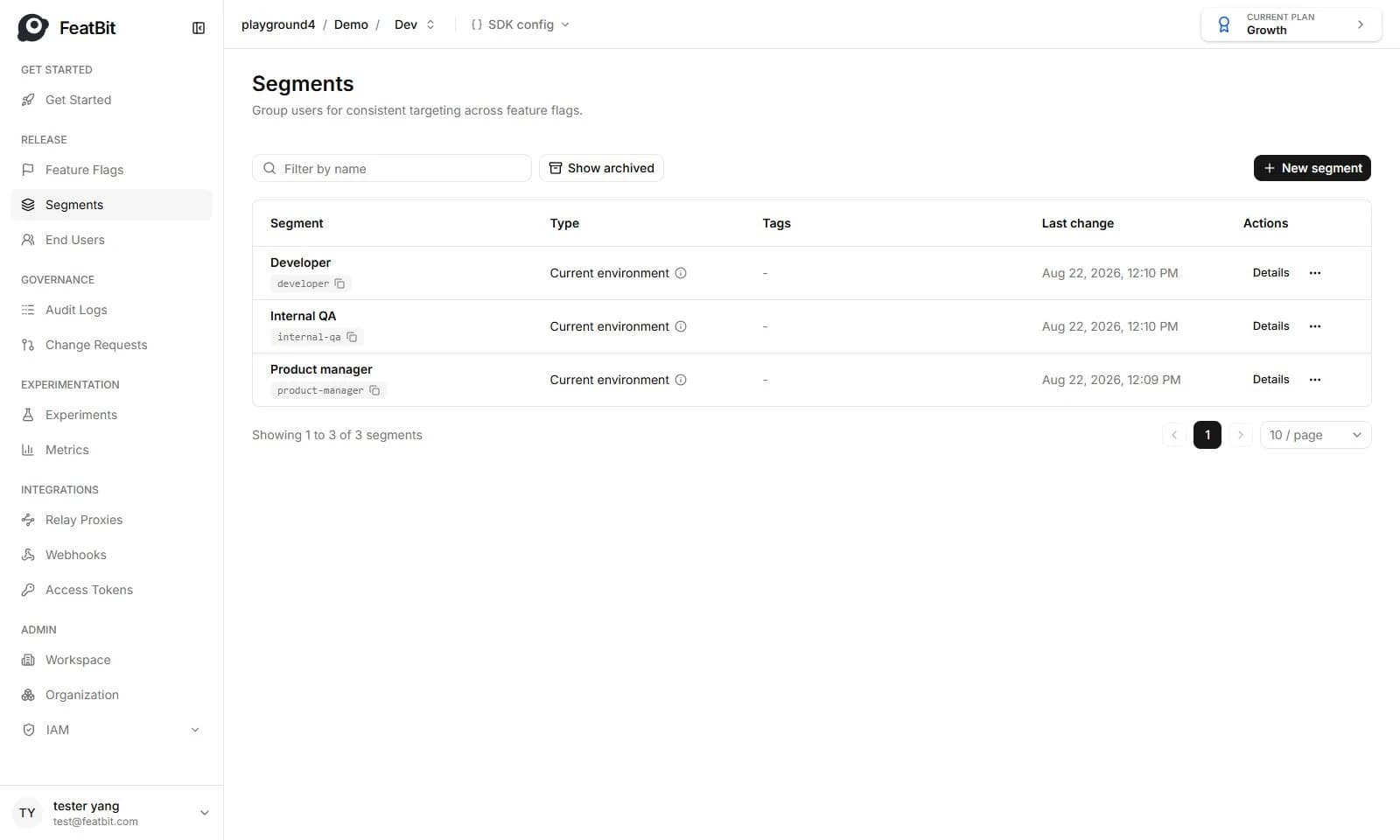
- Click New segment. The "New segment" panel appears.
 3. Give your segment a human-readable Name.
4. (Optional) Add a Description.
3. Give your segment a human-readable Name.
4. (Optional) Add a Description.
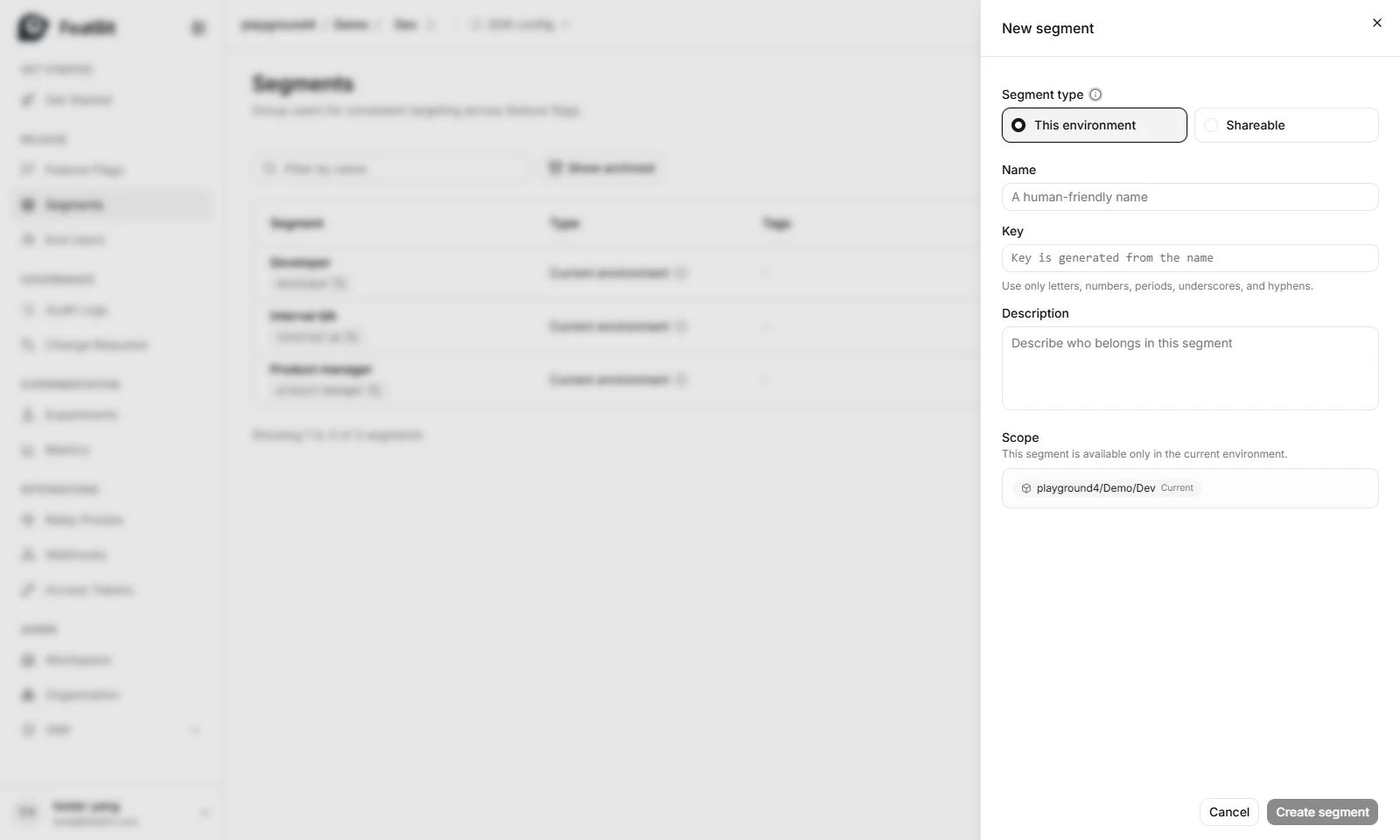 5. Click Create segment. The segment's Targeting tab appears.
Customizing user segments
You can customize a segment to apply to different users or attributes, or exclude users and attributes, in the segment's Targeting tab. Segment targeting rules function the same way as flag targeting rules. To learn more, read Targeting users.
To customize a segment:
- Navigate to the Targeting tab of the user segment you wish to modify.
- Individually target users with the Including users or Excluding users options.

- Click + Add rule button on the right side of Rules to create a custom rule for this segment. The custom rule menu appears:

- Specify an attribute, an operator, and values for the rule.
- If you want to add more criteria, click the plus button at the bottom of the rule criteria.

- Click Save.
Understanding segment rule logic
When you specify rules for a segment, FeatBit parses them in order of appearance from top to bottom. You can change how segment targeting applies based on the order of the rules you create.
If user matched one of the rules, user is treated as a Included users
Archive segments
To archive a segment:
- Find the segment you want to archive on the Segments list and click the three dots button.
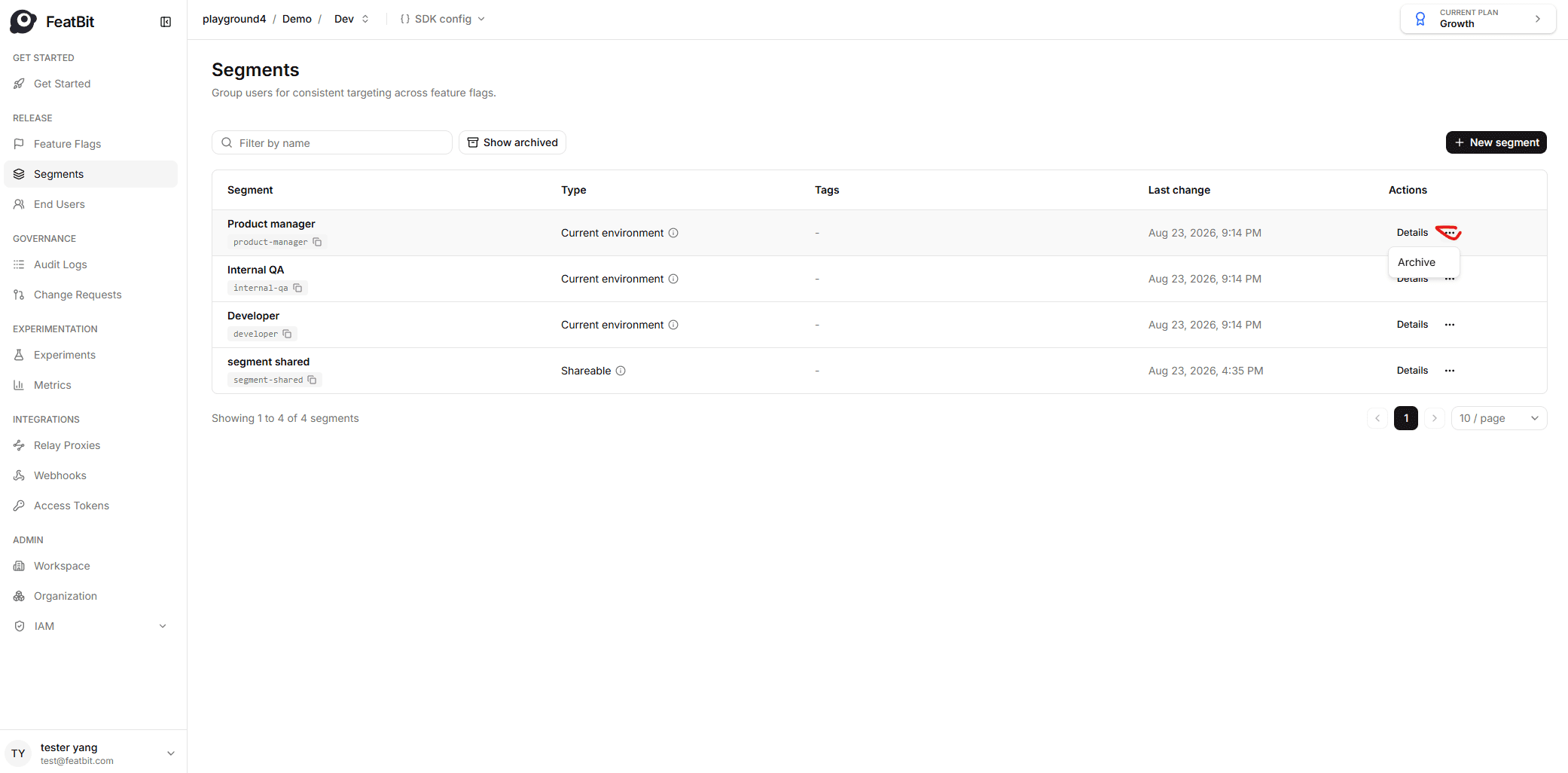
- Click on the Archive action button.
- Click on the Archive button in the archive segment dialog. If a feature flag is referencing the segment, you should first remove it from feature flag.
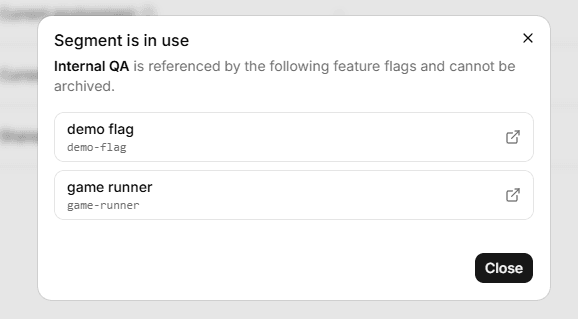
Restore segments
You can restore an archived segment:
- In the segment list page, click on the Show archived button
- Find the segment you want to archive and click the three dots button
- Click on the Restore action button.
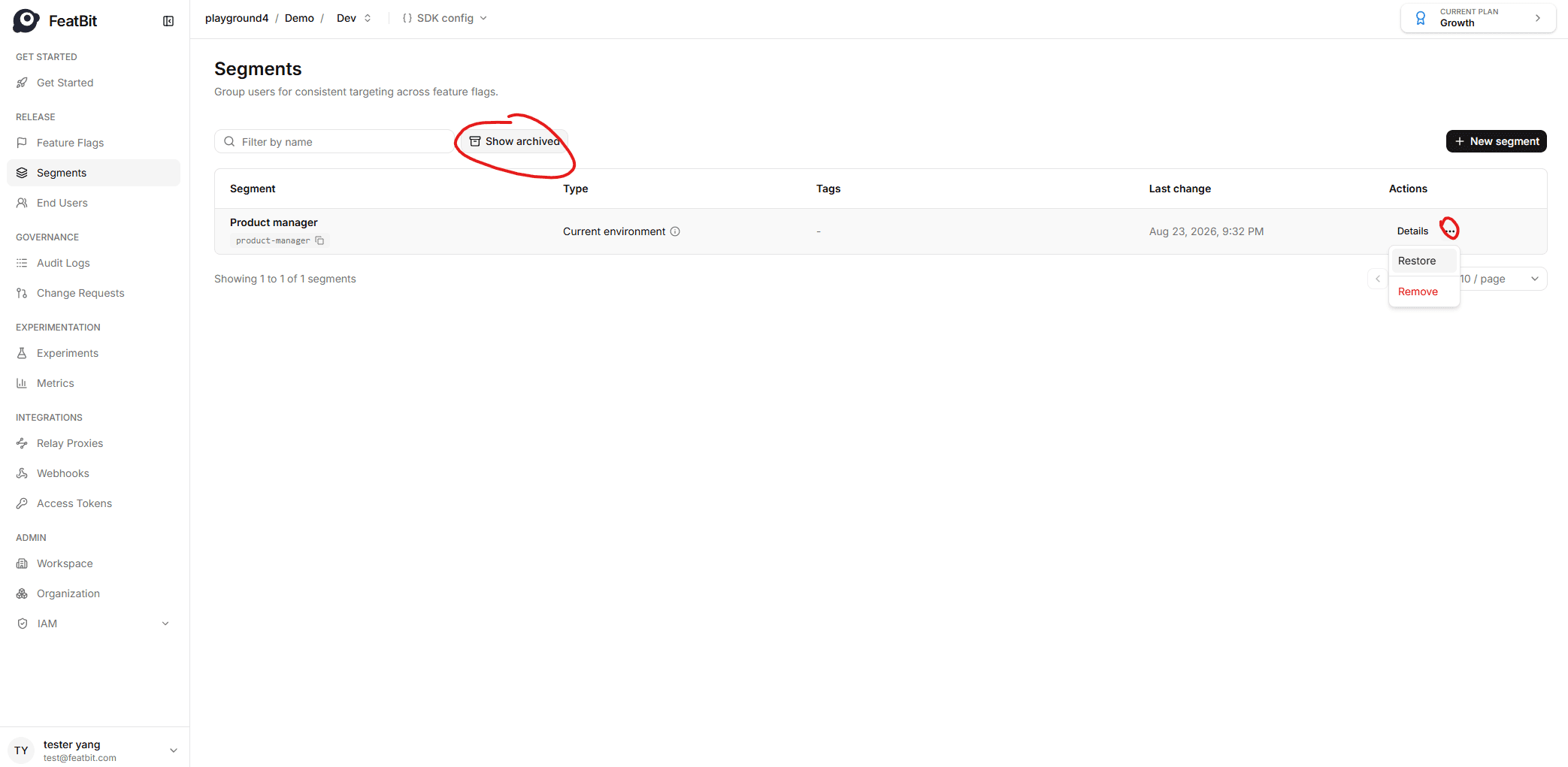
- Click on the Restore button in the restore segment dialog.
Delete segments
You can delete an archived segment:
- In the segment list page, click on the Show archived button.
- Find the segment you want to archive and click the three dots button.
- Click on the Remove action button.
- Click on the Remove button in the remove segment dialog.