Teams
Overview
This topic explains how to manage team members, team maintainers, and team permissions in FeatBit (an open source feature flags service).
Managing members in default Team
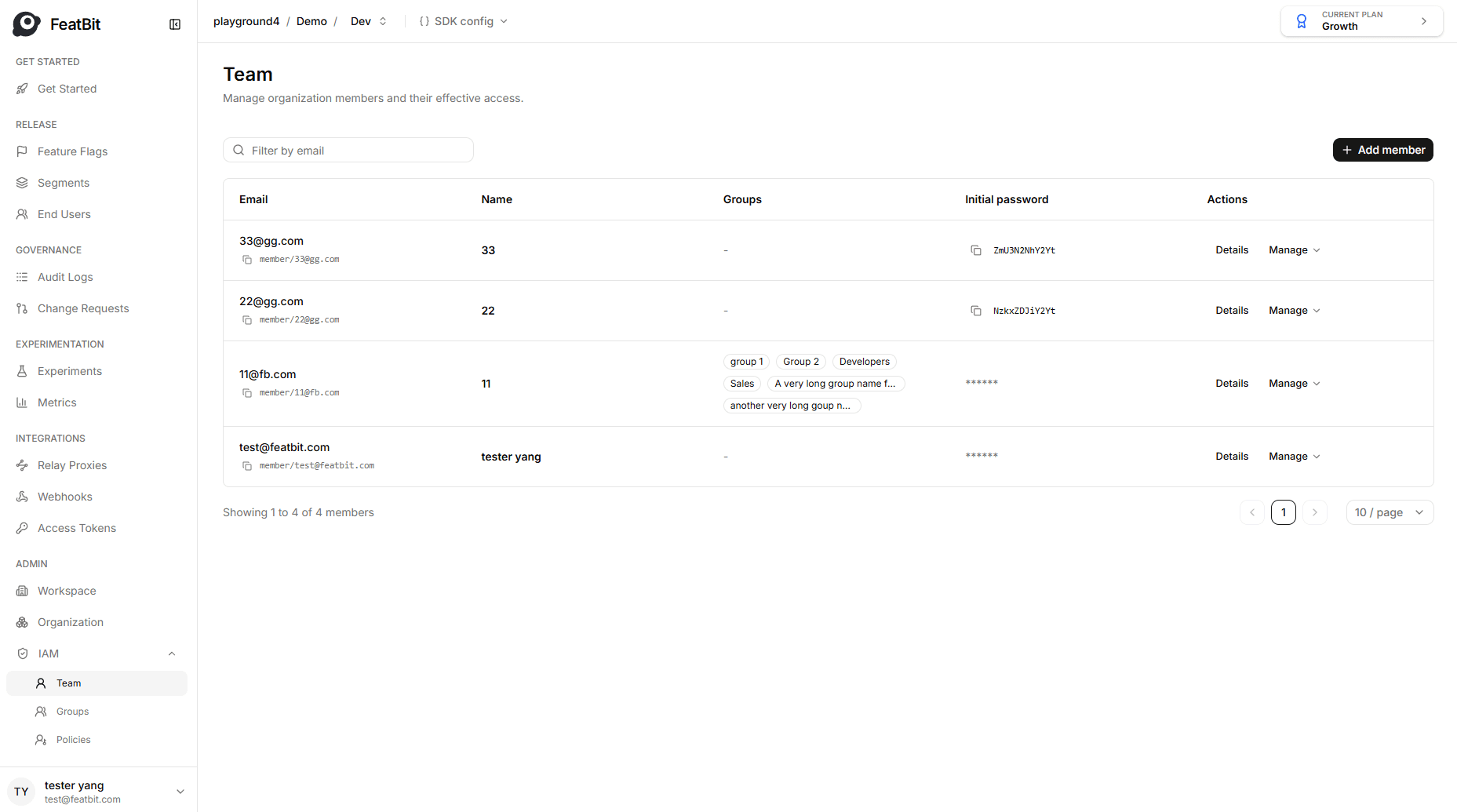
At the moment, FeatBit provides only one default team. You can create, update, delete and manage members on the team page in the IAM section.
Adding a member to the team
- Navigate to the Team page in the IAM section.
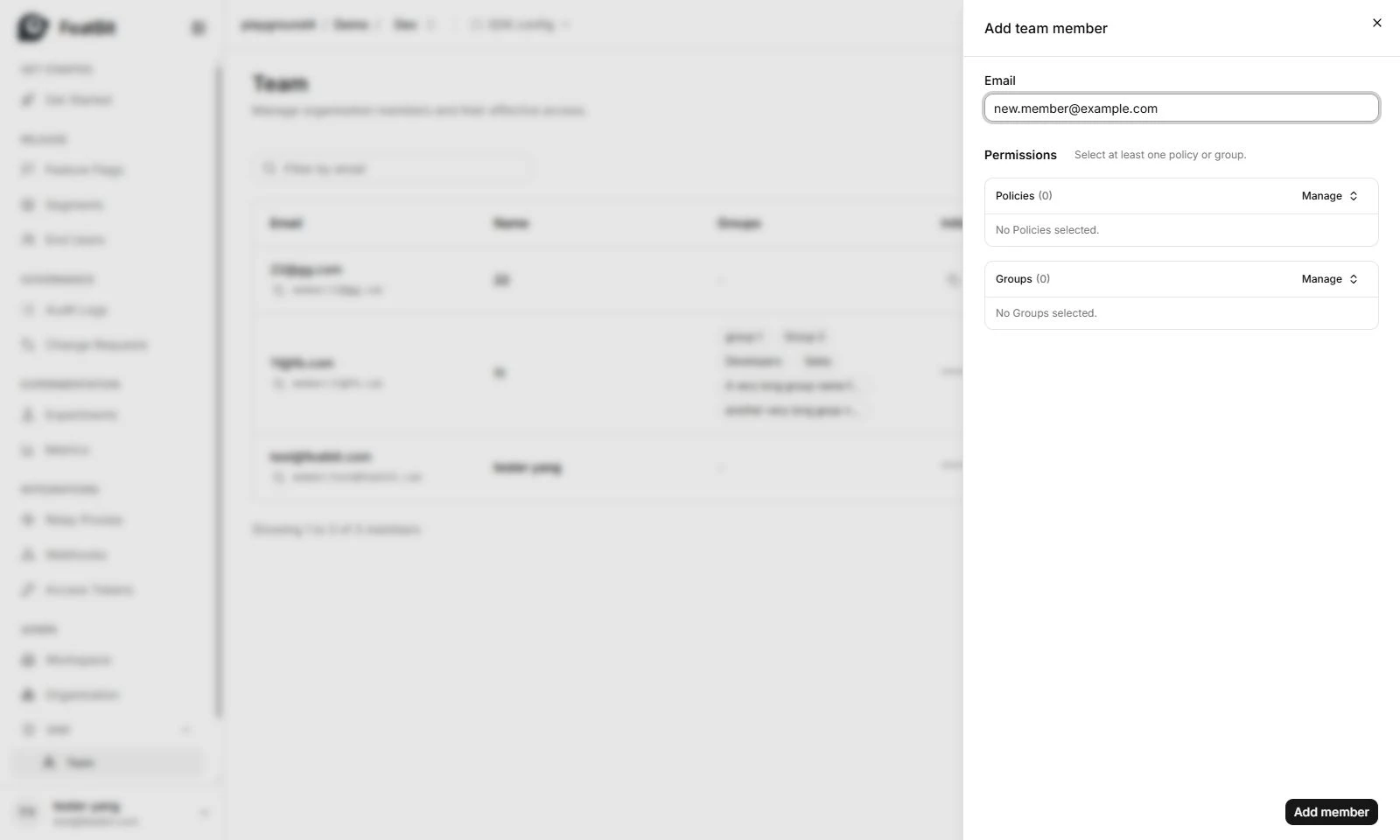
- Click Add member button. The "Add team member" dialog appears.
- Enter the email of the member.
- Choose the initial permission of the member.
- Choose the initial group.
- Click Add member button to create a new member.
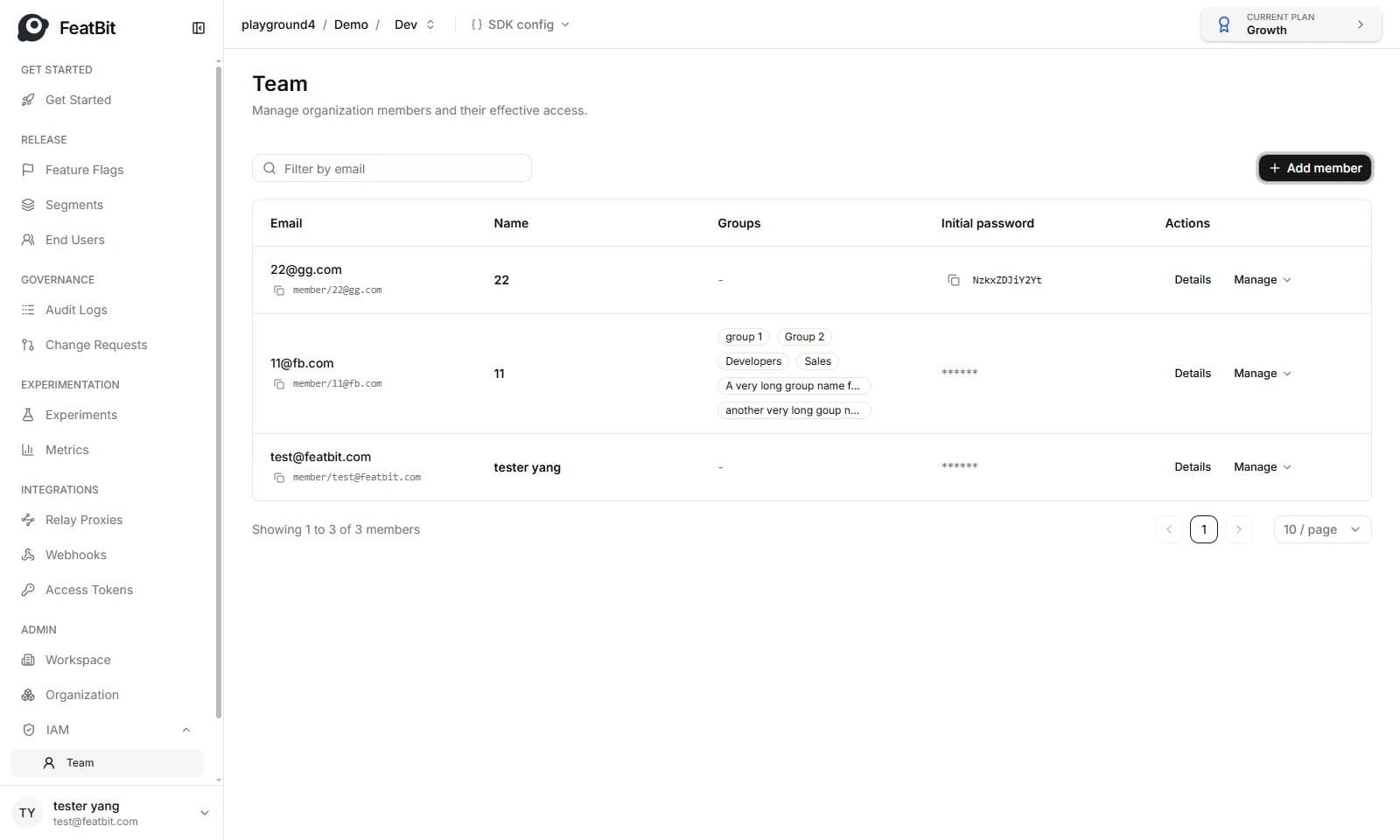
The new member was created with an initial password. It would be best if you paste it to your colleague.
Delete a member from the team
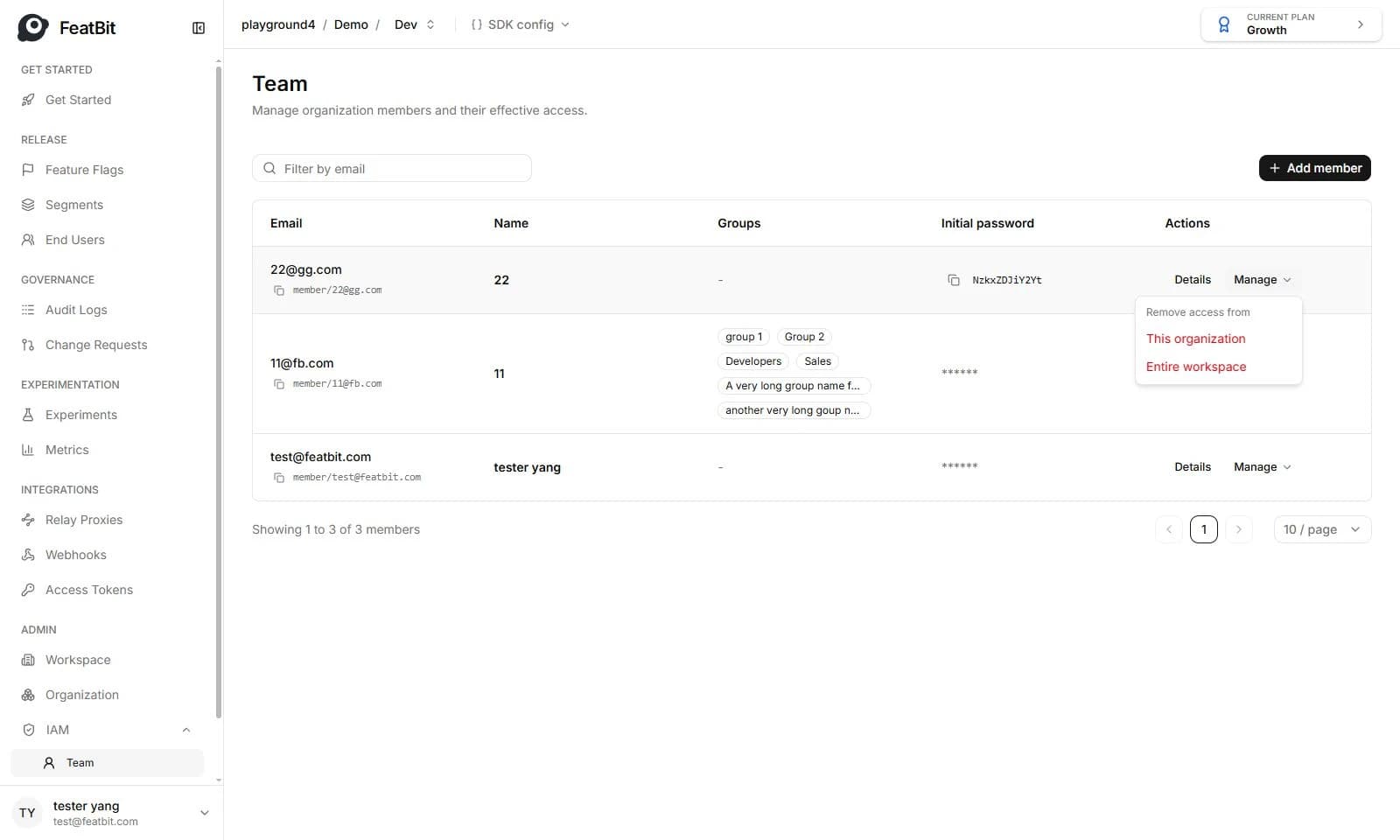
You can remove a member from IAM - Team page. Click the Manage then Remove button of the member/user you want to delete from the list. Member/User won't be able to log in if it's not in the team list.
Update member information
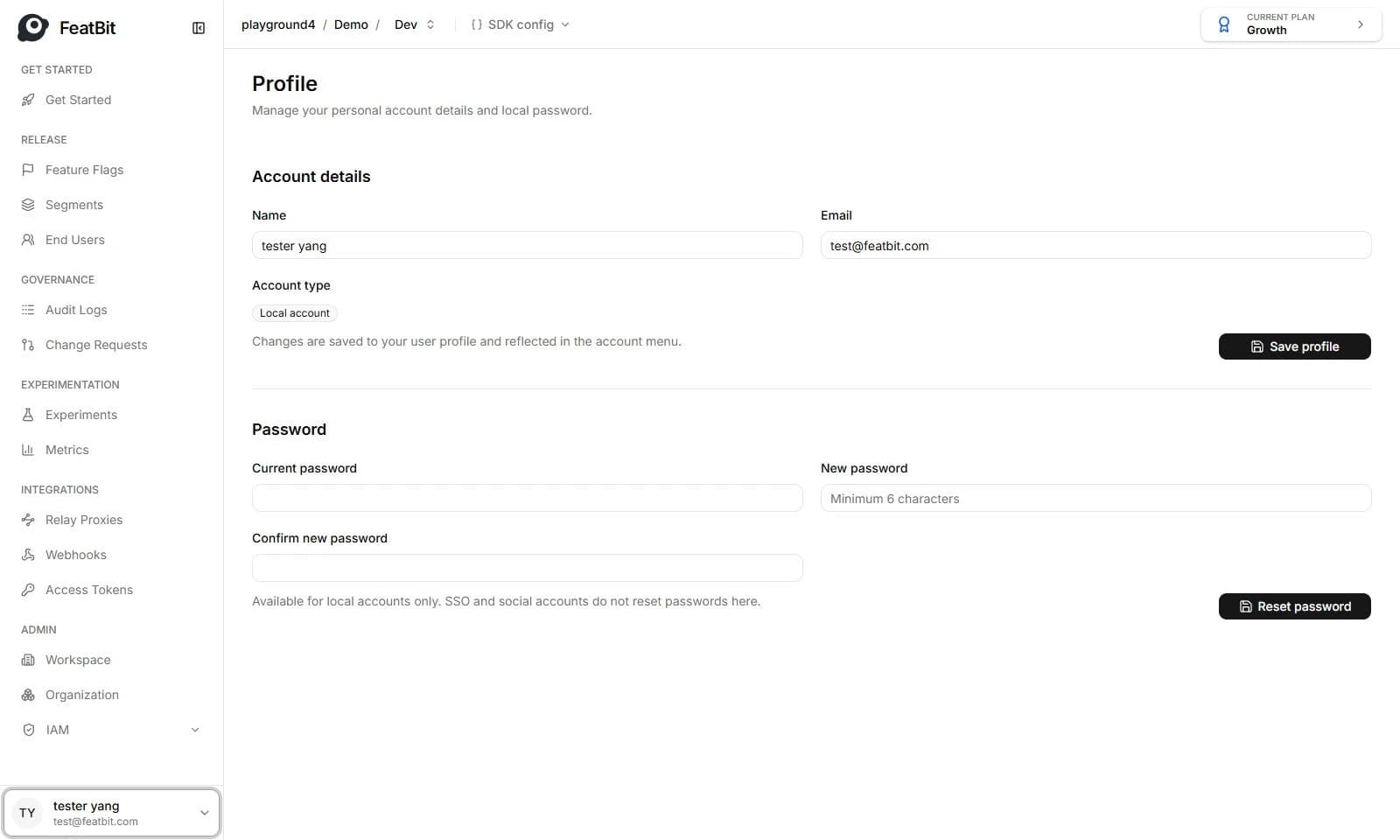
Only members him/her-self can modify his/her information, it includes email and name. Members can change their information on the Profile page.
Member list
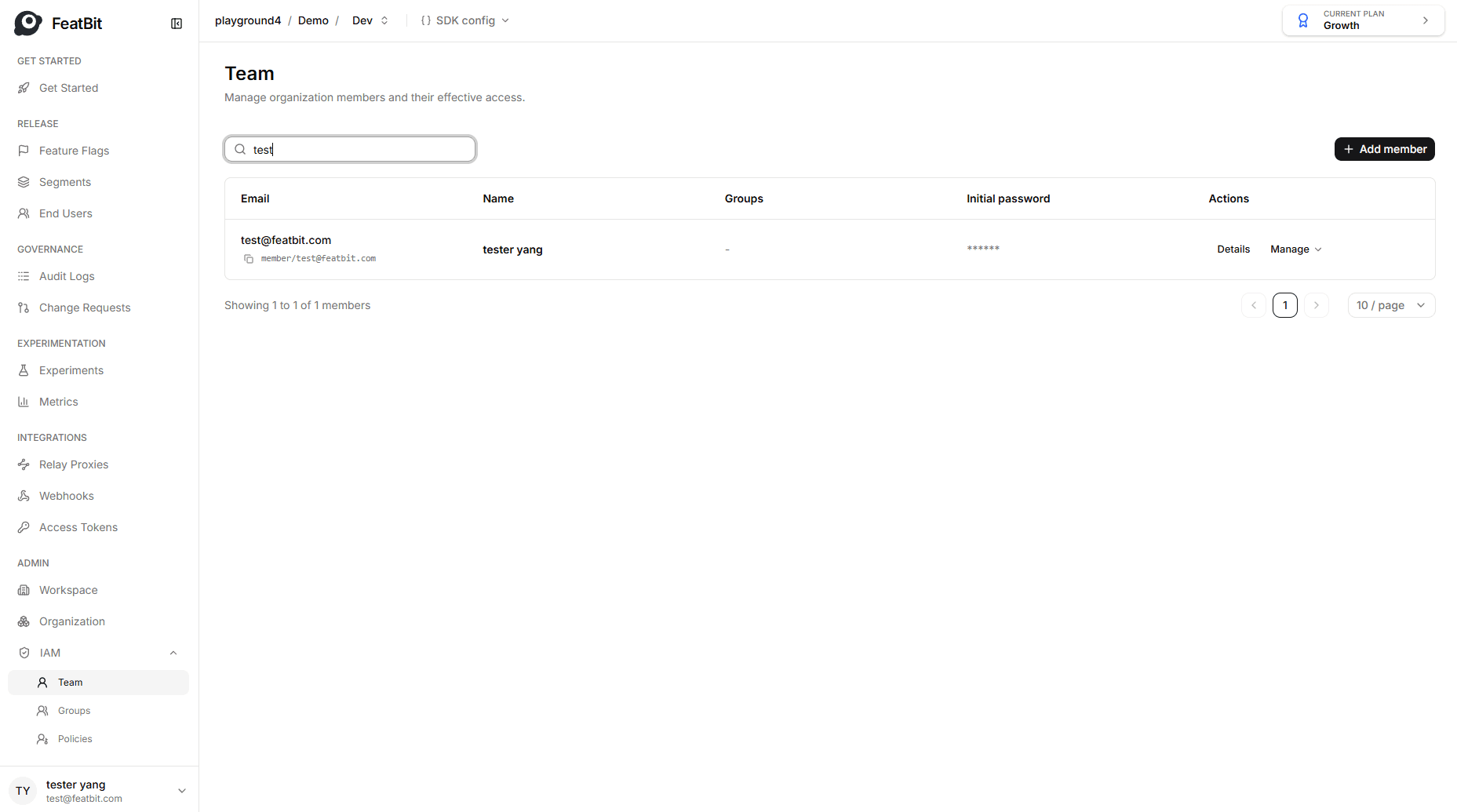
You can filter members by email.
Assign permission policies to a member
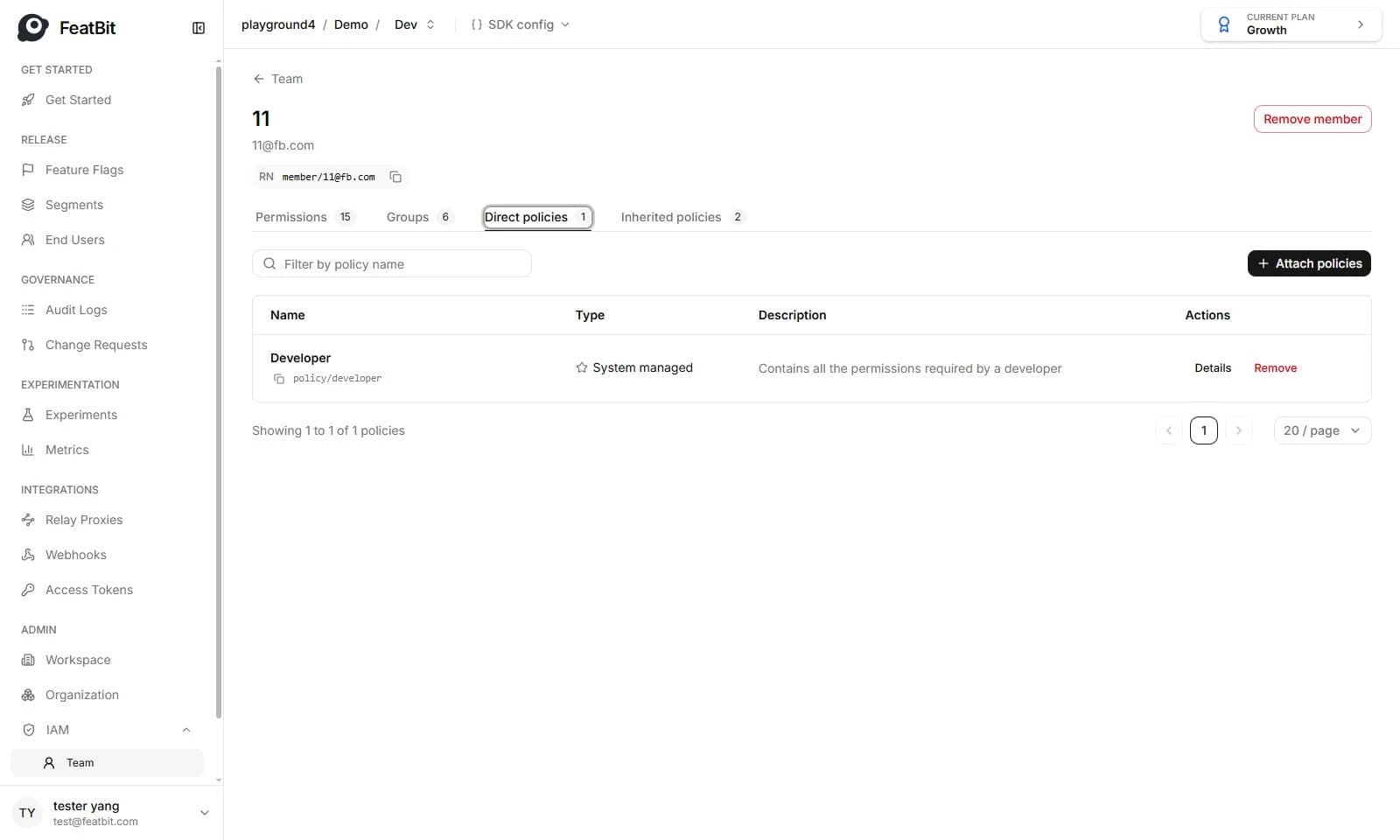
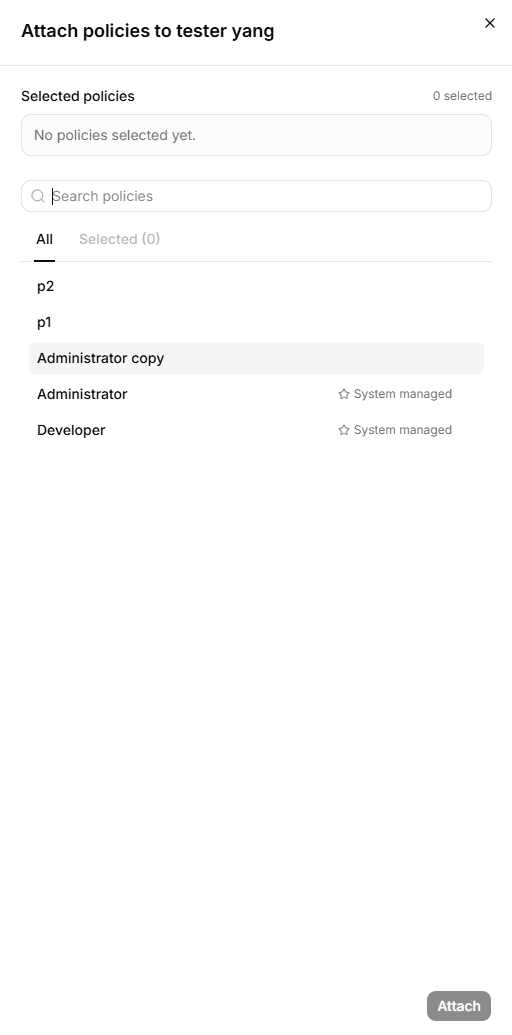
Permissions are managed on the Policy page. You can configure member's policies on the Direct policies tab on the member detail page.
- Click the Attach policies button, the attach policies to xxx drawer should appear
- Select the policies, if too many policies, you can filter with policy name.
- Click Attach button
- You can click Remove to detach the policy from the team memebr.
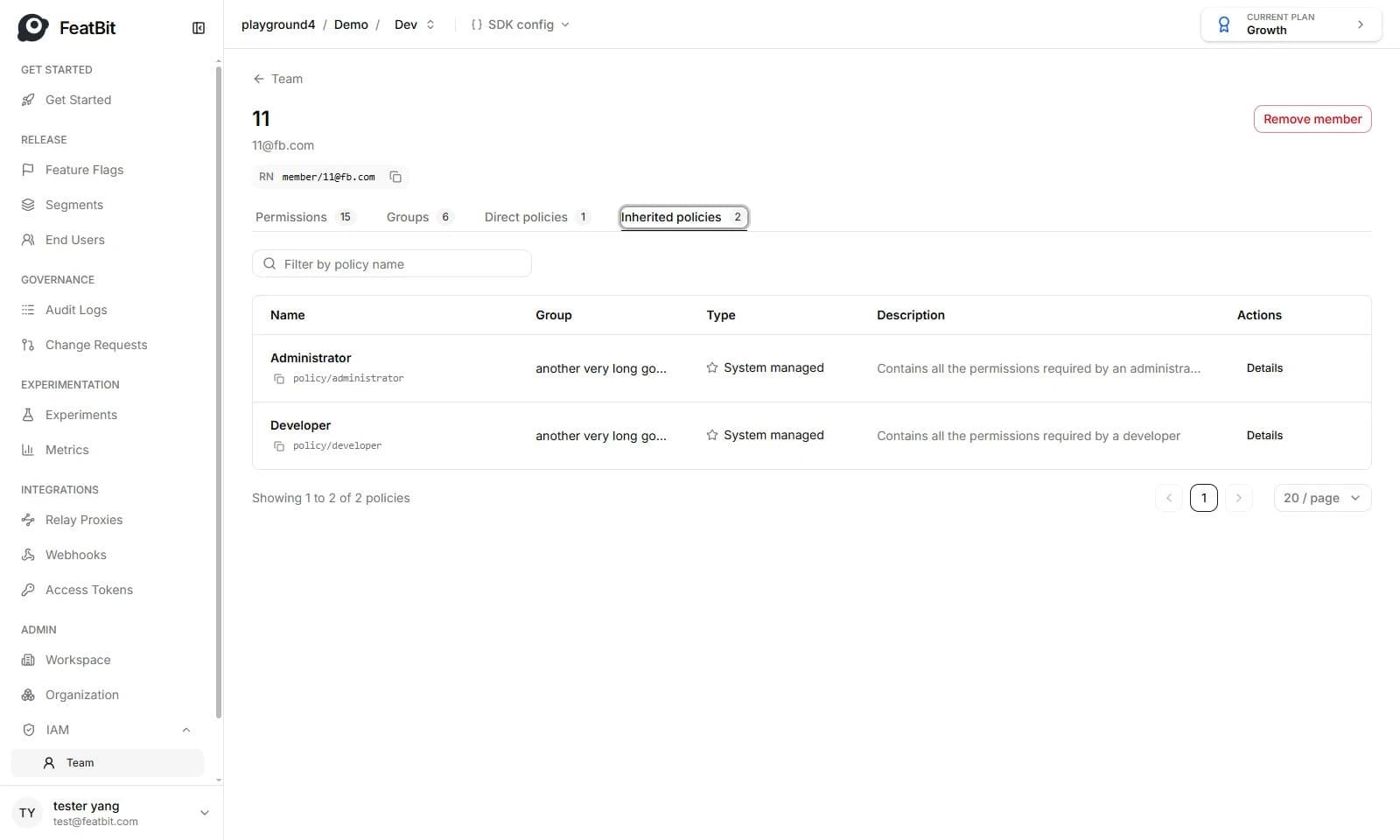
If a member is added to a group, this user will also inherit the policies from this group.
Assign a member to a group
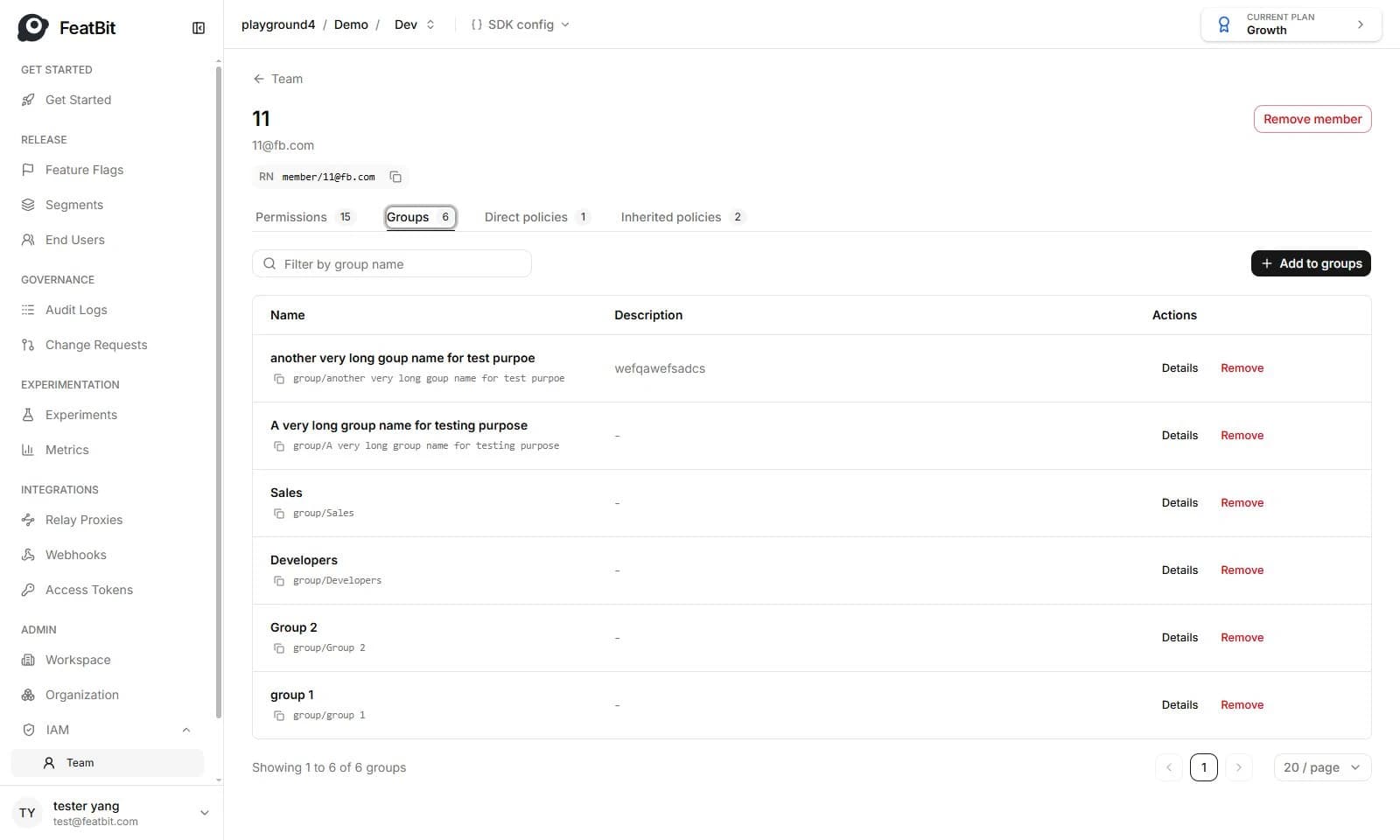
You can give member one or multiple groups, this member will inherit all permision policies of these groups. You can configure member's groups on the Groups tab on the member detail page.
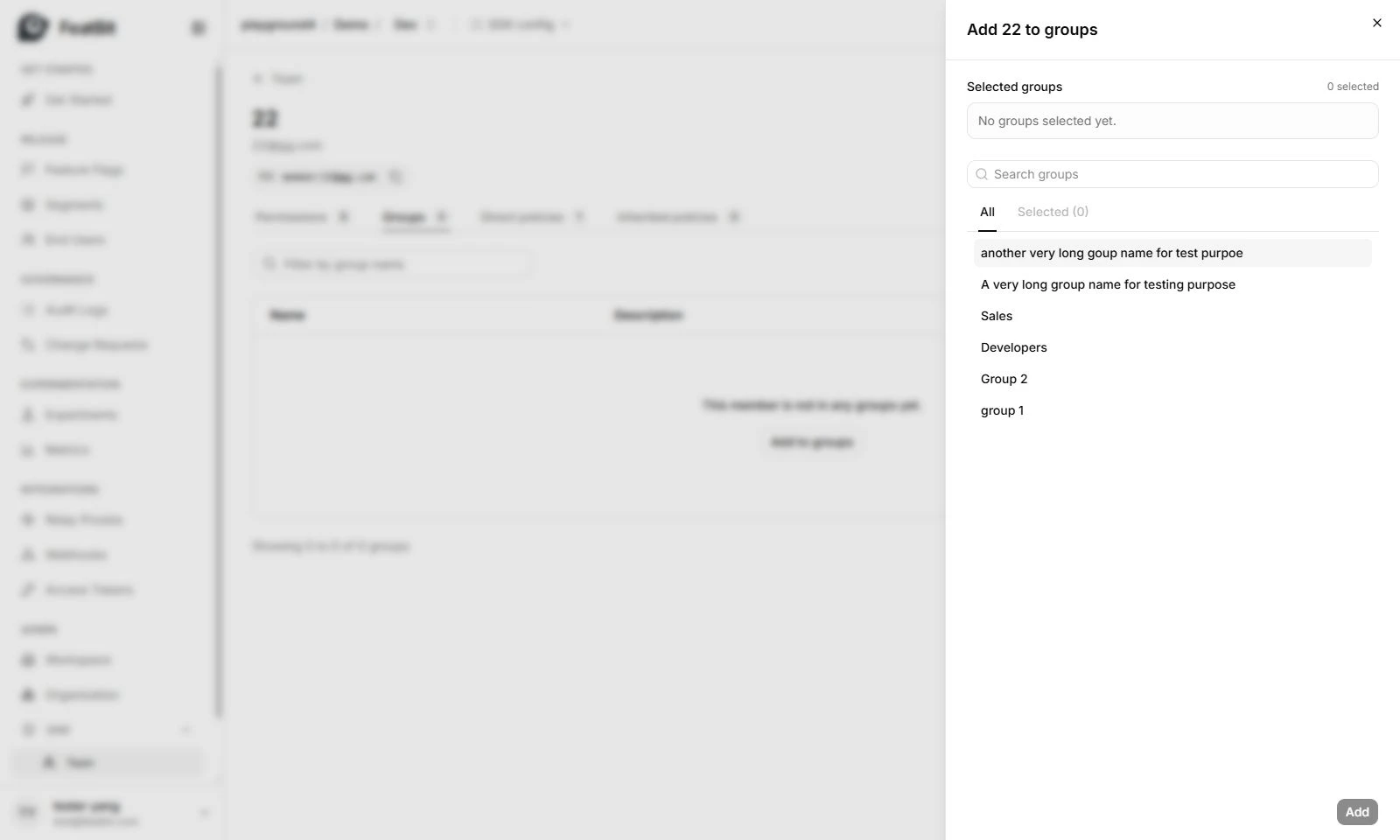
- Click the Add to groups button, the add xxx to groups drawer should appear
- Select the groups, if too many groups, you can filter with group name.
- Click Add button
- You can click Remove to detach the group from the user(member).